
How do I fix a "Too many translation keys" error?
Although Hextom: Translate and Currency automatically handles translation and localization for your store (languages, currencies, translated content, etc.), your Shopify store can still hit a hard translation key limit in the background. This happens because every translatable text, from theme settings, language files, apps, custom sections, page builders, and more — gets assigned a translation key.
This can cause:
❌ New text not being translated
❌ Some sections are showing in the wrong language
❌ App or page builder text missing in translations
And with the app, you may encounter this error just as well. It can look like this:
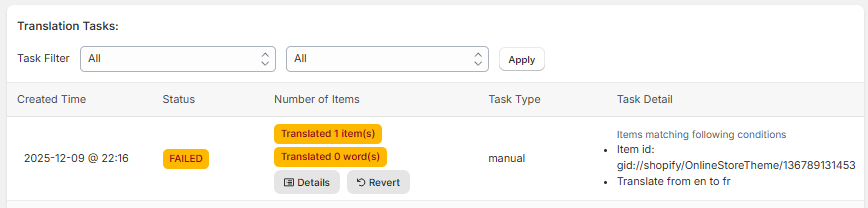
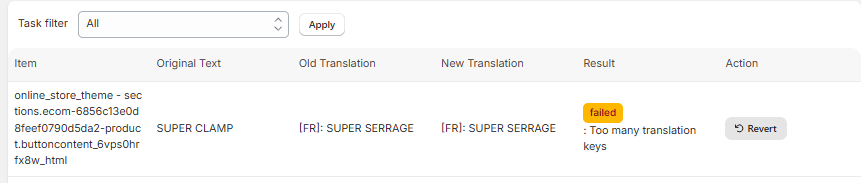
Don't worry about getting this error within the app — this is a Shopify limit, and it can be fixed by cleaning up old translation data within the Theme Editor.
On this page:
What is a Translation Key?
- A “translation key” is an identifier for any piece of text or content that can be translated (theme labels, buttons, custom content, app text, etc.).
-
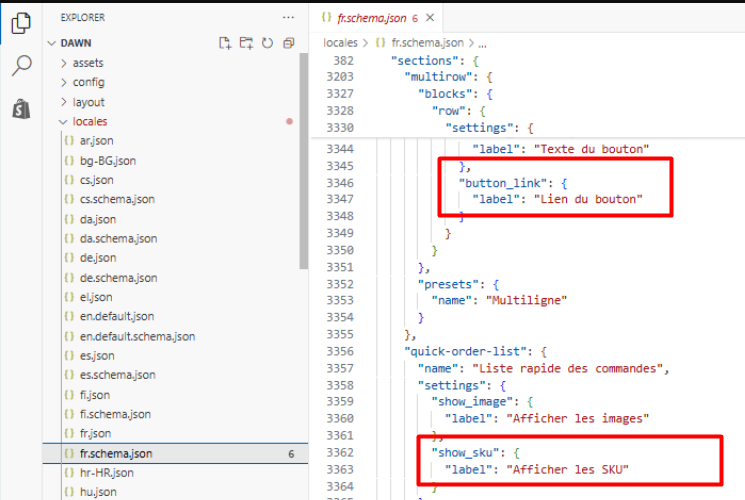
Within the JSON locale file, translation keys look like below:
- Even though the app simplifies and automates translation (via Advanced Translation features like AI or manual/CSV import/export), all translations still rely on Shopify’s native translation infrastructure — meaning translation keys accumulate the same way as if you translated manually.
- Frequent changes to your store — such as installing/uninstalling apps, adding custom sections, using page-builder apps, or creating many page templates — can generate a large number of translation keys. Over time, this can bring you close to Shopify’s internal limit for translation keys.
Default language (Example: English) = No limit
Translation languages (French, German, Spanish, etc.) = Maximum of 3,400 keys per language
Shopify has indicated that this limitation is implemented for "performance reasons." Once you exceed that limit, Shopify will stop accepting new translation keys, which may cause newly added or changed content to fail to translate or display properly in non-primary languages

You can find additional information in Shopify’s official documentation.
How to Fix a "Too many translation keys" Error?
If you run into translation-key limits, here’s a recommended cleanup and maintenance workflow:
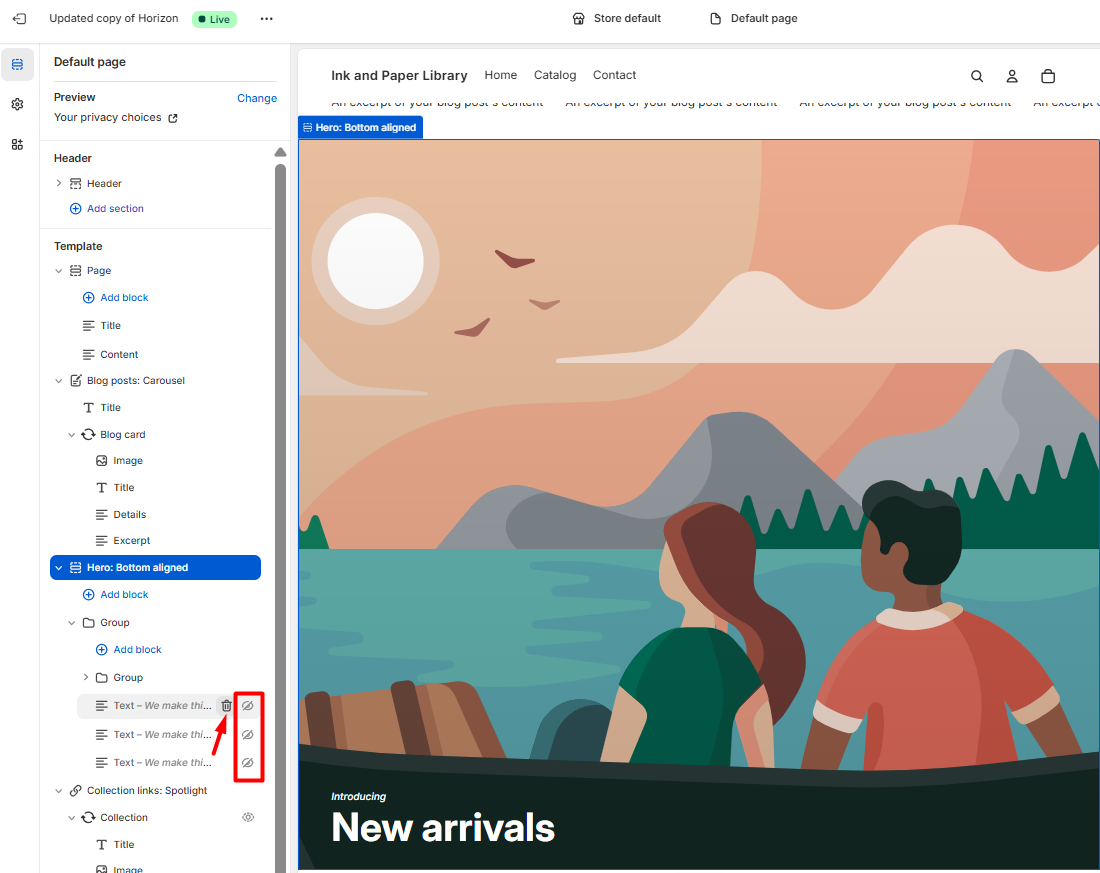
1. Audit your store’s content and apps within the Theme Editor.
- Review which apps you have installed. Some may no longer be needed or in use. Uninstalling them might leave behind translation keys.
- Remove any theme sections, custom templates, or page builder content that are no longer used (or redundant).
-
Identify outdated or duplicate content (e.g., pages, blocks, or custom sections) that may still hold translation keys and remove them.
2. Clean up unused translation keys
- Within your theme’s locale files (e.g. the translation JSON files Shopify uses internally), remove keys that no longer correspond to active content in your store.
⚠️Note:
Always back up your locale files (or entire theme) before deleting keys — just in case you accidentally remove something still in use.
-
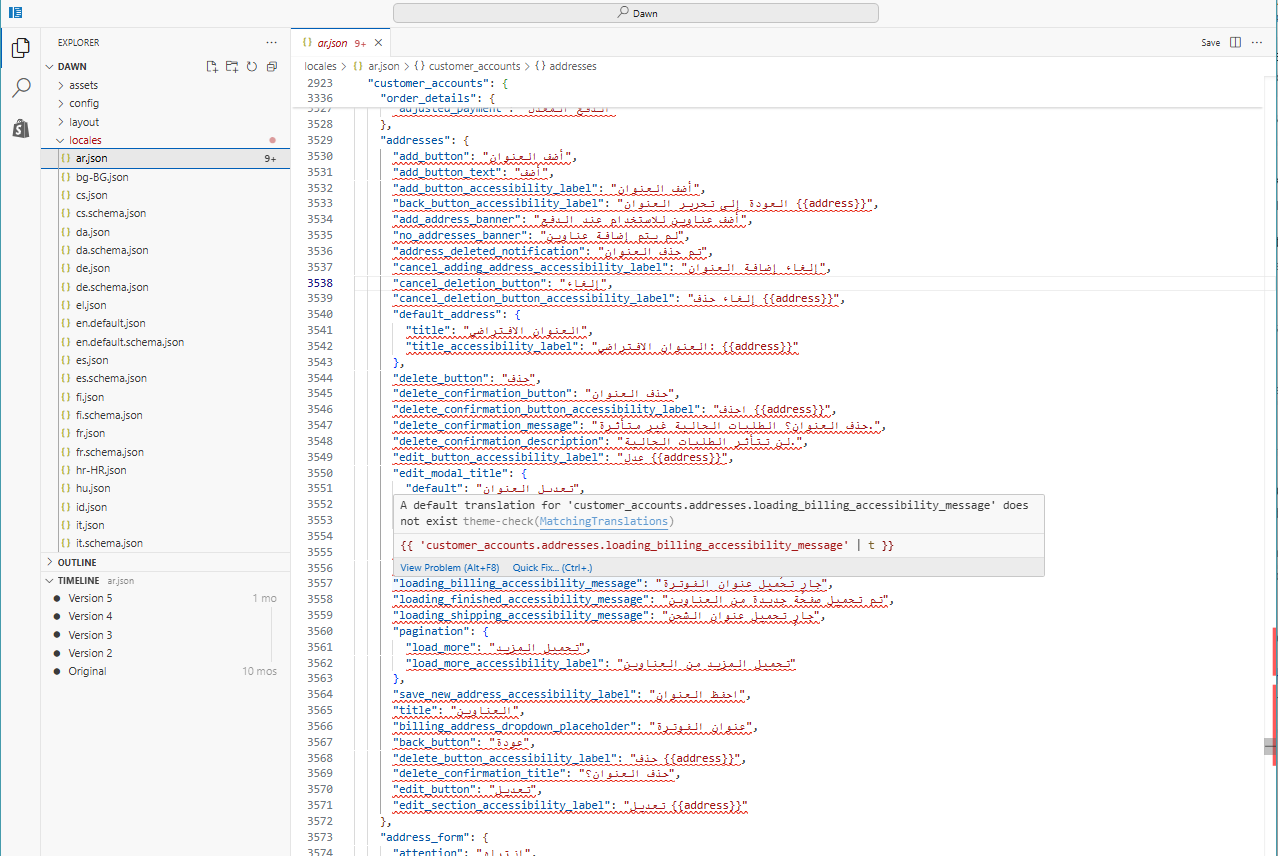
Shopify should be able to indicate any inactive keys in the file, like below:
-
Because Hextom: Translate and Currency relies on Shopify’s native translation mechanism, removing old or unused keys will free up capacity for future translations.
3. Use Hextom: Translate and Currency translation features wisely
Hextom: Translate and Currency provides multiple ways to translate your store, including:
- Advanced Translations: When you set a language to Advanced, the app scans the store for all existing text. This uses Shopify’s native translation system, which ensures translation keys are tracked properly. (Getting Started with Advanced Translations)
- Visual Editor / Custom Translation: For dynamic content, third-party app text, or custom page builder sections that might not be detected automatically, the Visual Editor lets you manually select and translate visible text, ensuring translations remain within Shopify’s framework. (How to translate 3rd party apps and dynamic text with the Visual Editor?)
-
CSV Import / Export Translations: If you prefer bulk translation via CSV/Excel (e.g. sending to translators), you can use our import/export feature, but after import, still double-check that locale files don’t exceed key limits. (How to use Export/Import Translation?)
4. Periodically clean and optimize
- Whenever you uninstall an app, remove or disable unused sections, or delete pages/templates — go back and clean up the associated translation keys.
- This helps prevent accumulation over time and avoids hitting Shopify’s hard translation-key cap, even as you continue to expand or localize your store. Here's an example from the Shopify community where merchants encountered the same issue.
Note:
If you’re not familiar with editing locale files or are concerned about removing the wrong keys, it's a good idea to reach out to your theme developer or Shopify support.
Even with a powerful translation tool like Hextom: Translate and Currency, your Shopify store still depends on Shopify’s underlying translation infrastructure, and that has a cap on how many translation keys you can have per locale.
If you regularly add content, custom sections, third-party apps, or build many templates without cleaning up stale content, you risk hitting that limit. When that happens, new translations won’t be applied, and parts of your store may appear untranslated or broken for non-primary languages.
To avoid that, you should periodically audit, clean up unused content/keys, and use translation tools responsibly.
If you need any assistance or have questions about this error, please don't hesitate to reach out to us via help@hextom.com